Copilot chat in Studio StarterEnterpriseEnterprise+
Use the Copilot chat feature in Studio IDE to generate SQL using your input and the context of the active project.
Copilot chat is an interactive interface within Studio IDE that allows users to generate SQL from natural language prompts and ask analytics-related questions. By integrating contextual understanding of your dbt project, Copilot assists in streamlining SQL development while ensuring users remain actively involved in the process. This collaborative approach helps maintain accuracy, relevance, and adherence to best practices in your organization’s analytics workflows.
Prerequisites
- Must have a dbt Starter, Enterprise or Enterprise+ account.
- Development environment is on a supported release track to receive ongoing updates.
- Copilot enabled for your account.
- Admins must enable Copilot (and opt-in to AI features, if required) in your dbt Cloud project settings.
Copilot chat overview
This section covers the different ways you can use Copilot chat in Studio IDE.
- Generate SQL
- Mention a model in the project
- Add and replace buttons
Ask Copilot to generate SQL queries using natural language, making it faster to build or modify dbt models without manual SQL coding.
You can describe the query or data transformation you want, and Copilot will produce the corresponding SQL code for you within the Studio IDE environment.
This includes the ability to:
- Scaffold new SQL models from scratch by describing your needs in plain English.
- Refactor or optimize existing SQL in your models.
- Generate complex queries, CTEs, and even automate best-practice SQL formatting, all directly in the chat or command palette UI.
To generate SQL queries:
- Navigate to the Copilot button in the Studio IDE
- Select [*] SQL from the menu
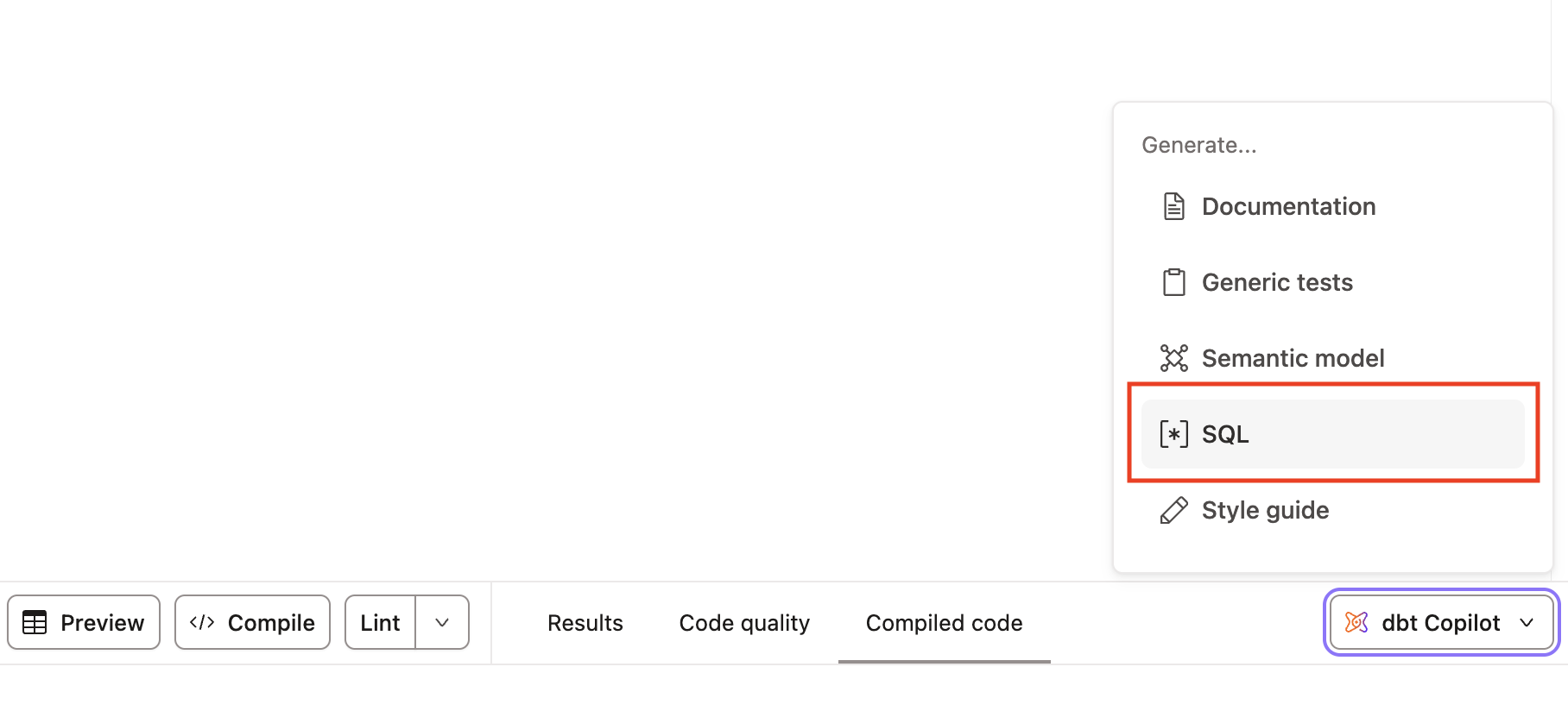 SQL option.
 This model mention capability is designed to provide a much more project-aware experience than generic code assistants, enabling you to:
- Pose questions about specific models (For example, "Add a test for the model
stg_orders")
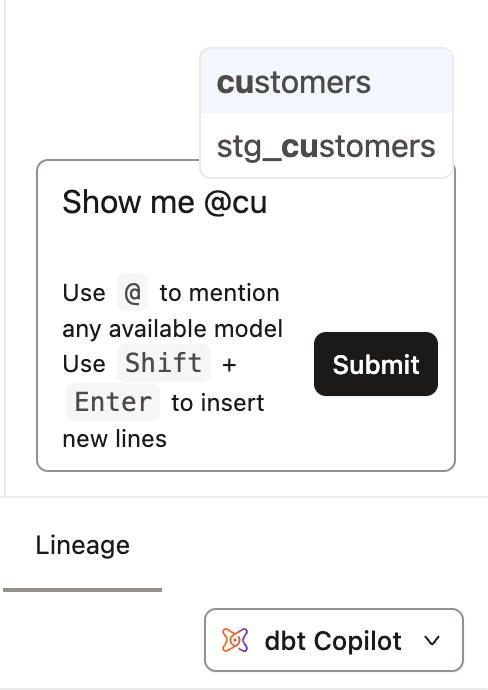 Mention model with menu open.
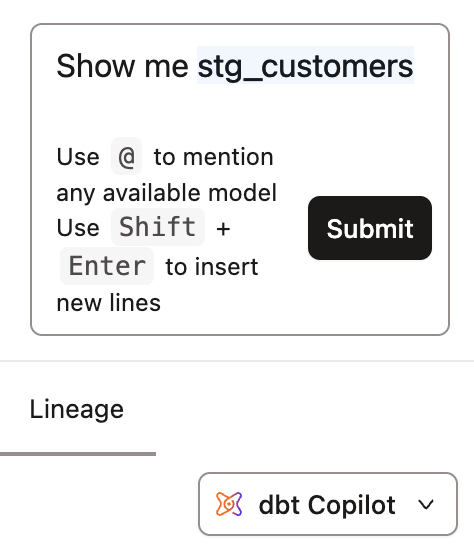 Mention model after selecting from menu.
Add generated code or content into your project, or replace the selected section with the Copilot suggestion, all directly from the chat interface. This lets you review and apply changes with a single click for an efficient workflow.
These buttons are often tracked as specific user actions in the underlying event/telemetry data, confirming they are core to the expected interaction with Copilot in Studio IDE and related surfaces.
The Add button lets you append Copilot's output, while Replace swaps your current code or selection with the generated suggestion, giving you precise, in-context editing control.
Note, if the file is empty, you'll only see Add as an option, since there's nothing to replace.
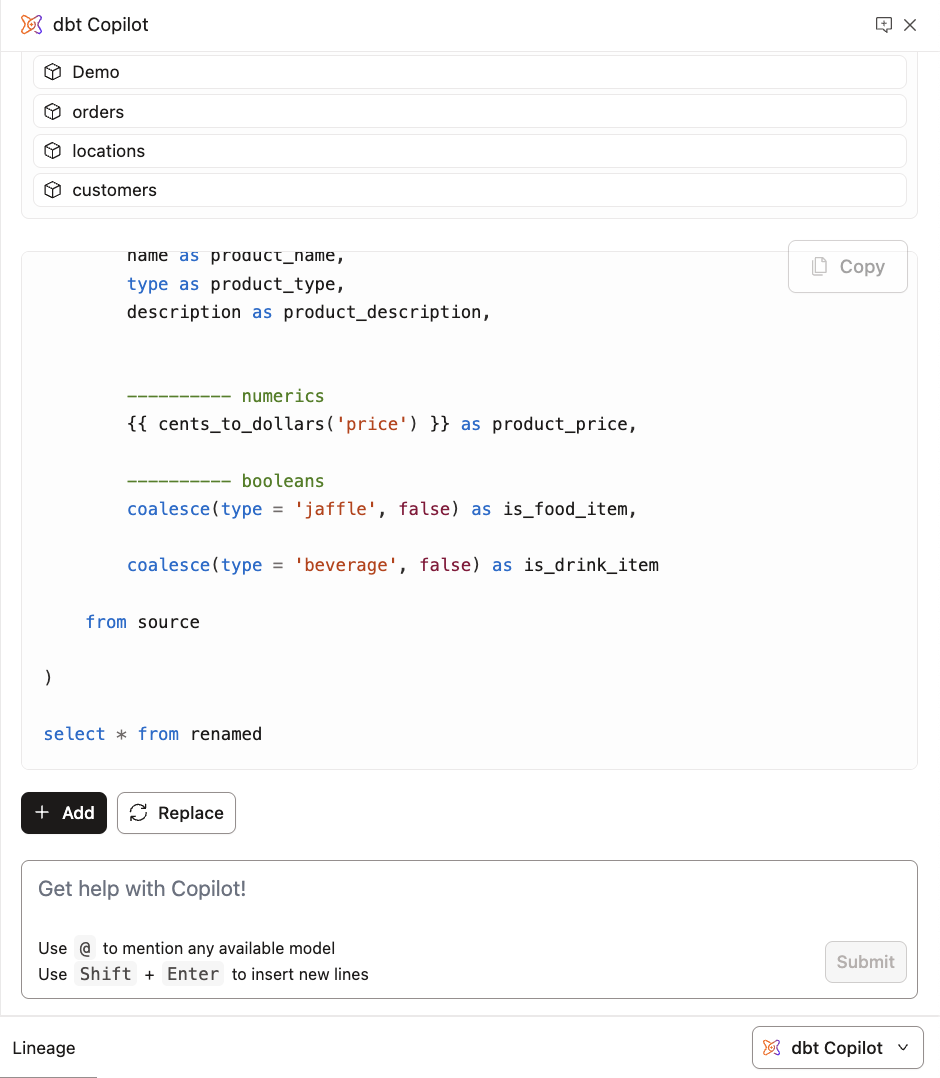 Add and replace buttons.
Related docs
- Prompt cookbook — Learn how to write effective prompts for dbt Copilot
Was this page helpful?
This site is protected by reCAPTCHA and the Google Privacy Policy and Terms of Service apply.